Code & data · MarkdownPDF & WordMarkdown to PDF, Word and HTML
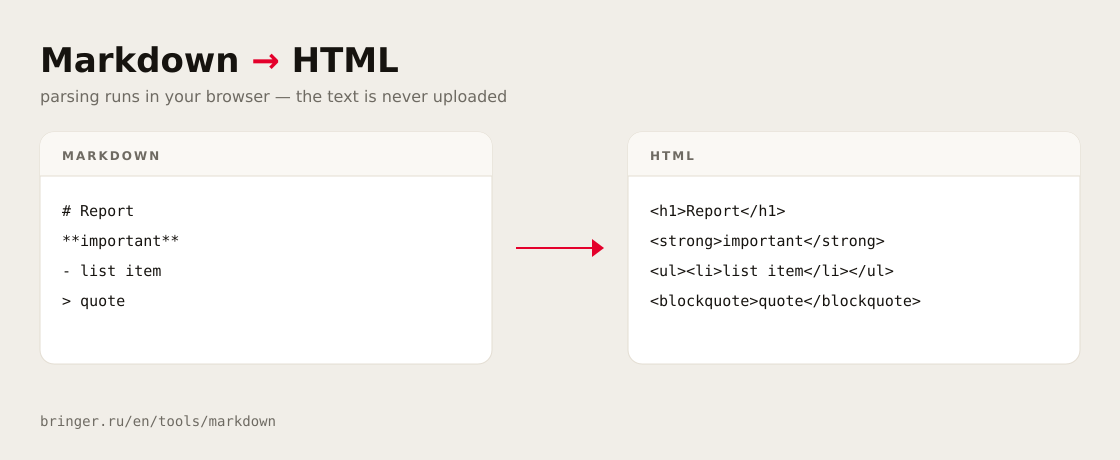
Markdown is plain-text markup: # makes a heading, **bold** stands out, | draws a table. Write on the left and see the finished document on the right. Download it as PDF, Word or HTML — everything runs in your browser, the text goes nowhere.
The text is processed in your browser and never sent anywhere
Markup has to stay readable without any software at all.
Numbers
Month
Total, $
July
12,400
August
18,900
September
21,300
Growth is k = \frac{S_2}{S_1}, and energy is E = mc^2.
\int_0^1 x^2\,dx = \frac{1}{3}
Code
const html = md.render(source);
document.body.innerHTML = html;
The file now opens in Excel without garbled characters. ↩
This is how the PDF will look: grey bands mark page breaks, the file sets them exactly.
620 px
Exportquarterly-report.pdf
Download as
Layout
Text
PDF
PaperOrientationMargins
The PDF is built in your browser and downloads as a file. Code highlighting is off: that prints better in black and white.
Word
Orientation
“Heading 1–6” styles → Word navigationTables with borders and a header rowLaTeX equations → Word equationsFootnotes at the bottom of the pageNo page numbersFonts are not embedded — Word picks them by name
HTML
02
About the format
click a card — the example goes into the editor
03
Frequently asked questions
Markdown is a way to mark up plain text so that it stays readable without any software: a heading starts with a hash, a list item with a dash, important words sit between two asterisks and a table is drawn with pipes. GitHub READMEs, Obsidian notes and chatbot answers are all written this way. This editor shows the markup on the left and the finished document on the right.
Paste your text or open a .md file, pick a format under the editor and press Download. Both the PDF and the Word file are built in your browser and download straight away: the PDF with page numbers and equations, the .docx with real heading styles, tables and editable equations. Each format has its own page with the details and settings. Markdown to PDF →
Six levels of headings, bold, italic and strikethrough, bulleted, numbered, nested and task lists, blockquotes, links and images, tables with column alignment, fenced and inline code, horizontal rules, footnotes like [^1] and LaTeX equations inside $…$, $$…$$, \(…\) and \[…\]. The last two styles are what ChatGPT and other chatbots use, so their answers convert without editing.
The cleaner strips the markup and leaves plain text: asterisks and hashes disappear together with any formatting, which suits a messenger or a web form. This tool does the opposite and turns markup into formatting — asterisks become bold, hashes become headings, pipes become a table. Choose by what you need at the end: a formatted document or just the words. Clean up AI text →
Choose the HTML format. A fragment — content tags only — is copied for a CMS or a template, while a full document with inline styles downloads as a file that opens on its own. Switches add heading ids for anchors, links that open in a new tab and autolinks. Tags in the source are escaped by default, so a stray script never reaches your page.
Nowhere. Parsing, the preview and building the PDF, Word and HTML files all happen in your browser, and the text is never sent to a server. The draft is kept only in this browser so it survives a reload, and it is never written into the page address, which ends up in your history, in extensions and in analytics scripts.